For setting up email on Apple's own Mail.app it's required to use StartTLS for outbound (SMTP), meaning we need to use port 587 instead of port 465.
This boils down to how Mail.app does authentication on iOS, where port 465 will not work.
Keep in mind this guide does not apply to MacOS Mail.app where port 465 will work just fine.
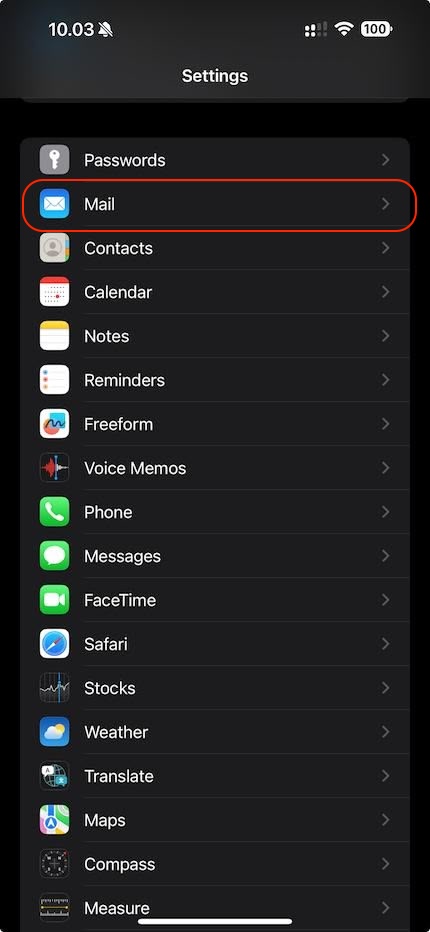
Step 1: Go to Settings on your phone, and then go to Mail:
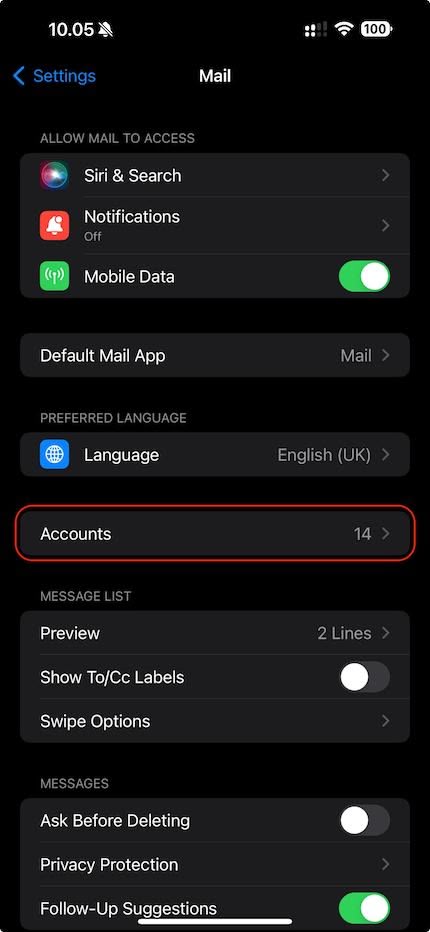
Step 2: Go to Accounts:
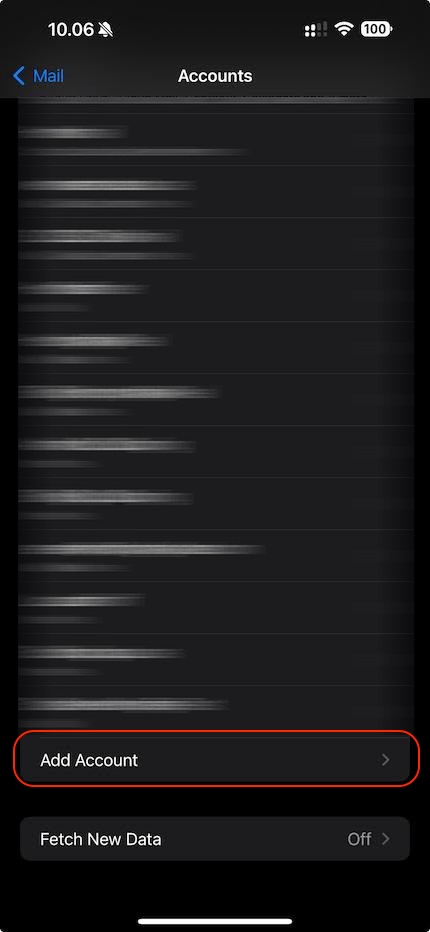
Step 3: Add a New Account by clicking Add Account:
Step 4: Select Other and then Add Mail Account.
Step 5: Fill out your account information
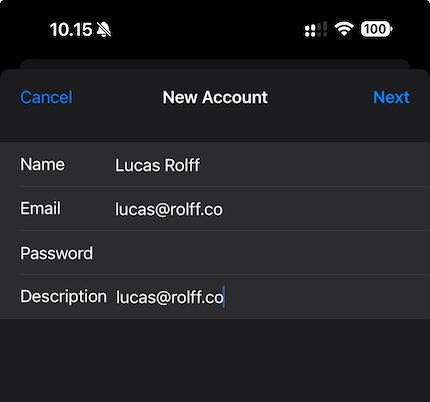
The Name describes the name of which will be used when you send email or reply to people, usually this would simply be your name.
Email is your email you want to add, and the corresponding password goes in Password.
Description is the name that the account will be shown as in your Mail.app application.
After you've filled out this information, click "Next".
Step 6: Fill out the server settings:
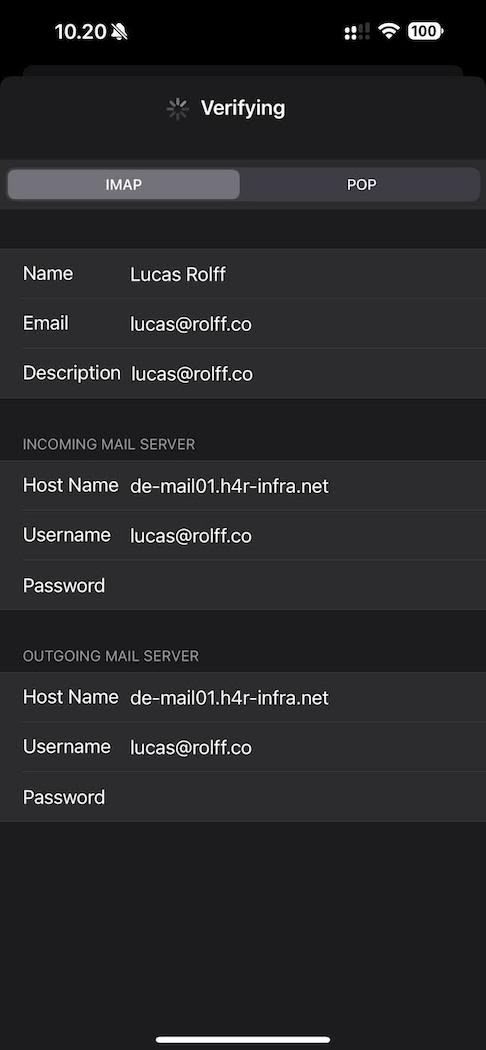
Be sure to select IMAP.
Then fill out your mailserver hostname. For cPanel servers it's usually mail.<yourdomain.com> - for hosting-panel.net accounts, it can be found under IMAP/SMTP Server on the overview at https://hosting-panel.net/
Username in both incoming and outgoing mailserver should be your email, and IMAP/SMTP Server should be the corresponding password.
When you click Next, it will start verification of the credentials, this will take a bit since it will try to determine the correct ports such as port 993 for IMAP and port 587 for SMTP.
In case the verification does not work, you'll get the option to fill out the port, in which you should fill out port 587 for SMTP, so your outbound settings would look like the following:
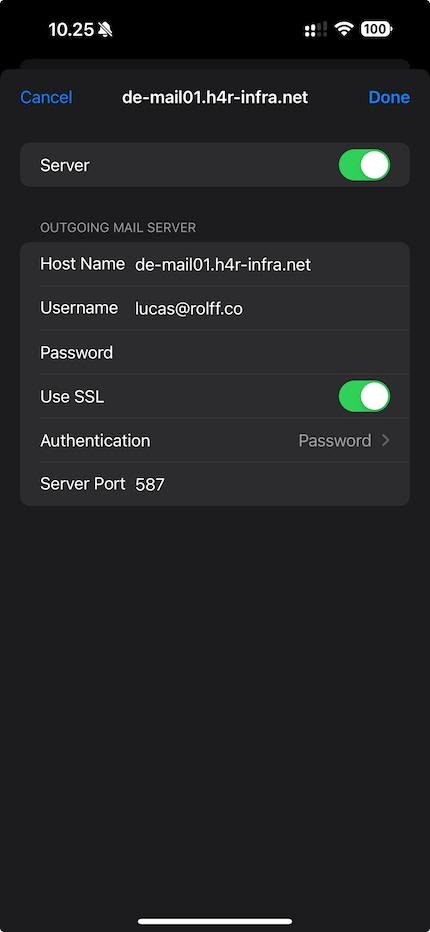
These settings can be found by going to Settings -> Mail -> Accounts -> Your email account -> Account Settings -> SMTP -> "Primary Mail Server"
